Backup & Restore
Take a complete copy of your installation before an upgrade, and restore it into a fresh one if something goes wrong.
What a backup contains
Section titled “What a backup contains”A backup is a single compressed archive holding every table in your installation — accounts and workspace roles, projects, repositories, workflows and their version history, rulesets, CODEOWNERS, custom files, pull request history, and drift state.
Alongside the data it records what is needed to restore it safely: the ActionsManager version that wrote it, a checksum for every table, and the list of database migrations the installation had applied. That last item is how a restore knows whether an archive is older, newer, or a match for the installation receiving it.
Two things are deliberately left out:
- Sign-in sessions. They are neither backed up nor preserved through a restore, so no one stays signed in across one.
- Nothing decrypted. Saved GitHub tokens are copied in the encrypted form they are already stored in. They are never decrypted to make a backup.
Downloading a backup
Section titled “Downloading a backup”Workspace admins open the account menu and choose Backup. The page shows what the archive will contain before you take it.
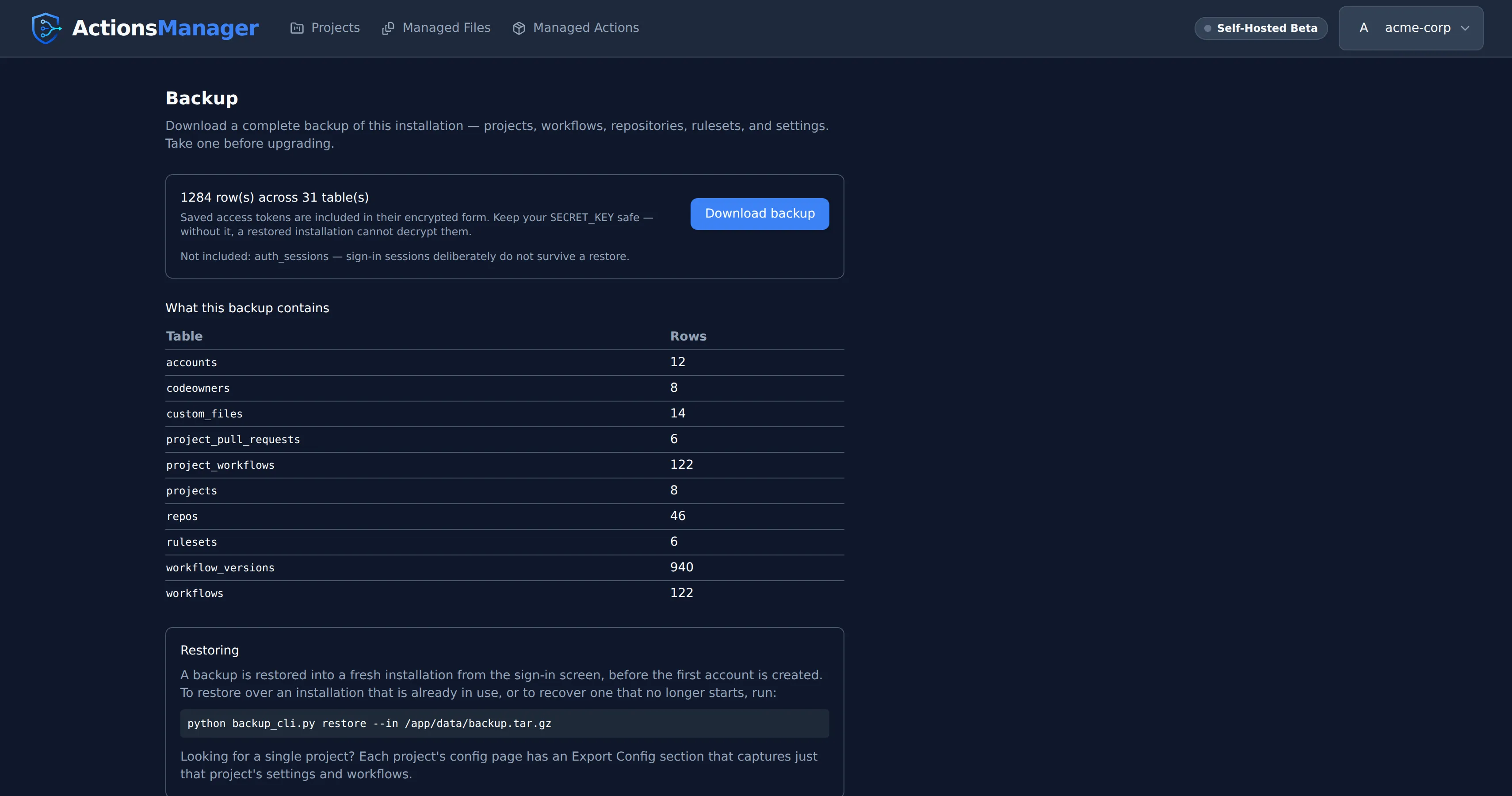
Downloading is read-only and safe to do at any time — it does not lock the database or interrupt anyone working.
From the command line:
docker compose -f docker-compose.self-hosted.yml exec -u appuser app \ python backup_cli.py backup --out /app/data/backup-$(date +%Y%m%d).tar.gzThe archive is interchangeable between SQLite and PostgreSQL, so a backup taken from one restores into the other.
SECRET_KEY
Section titled “SECRET_KEY”Saved GitHub tokens are encrypted with a key derived from SECRET_KEY, and they stay encrypted
in the backup. Only an installation using the same SECRET_KEY can decrypt them.
- Keep
SECRET_KEYsomewhere separate from your backups. Without it, restored tokens are unrecoverable; stored with them, the encryption stops being worth anything. - Restoring under a different key still works. Everything except saved tokens comes back, and each user re-enters their token. ActionsManager detects this and warns you before you commit to the restore rather than leaving you to discover it afterwards.
Restoring into a fresh installation
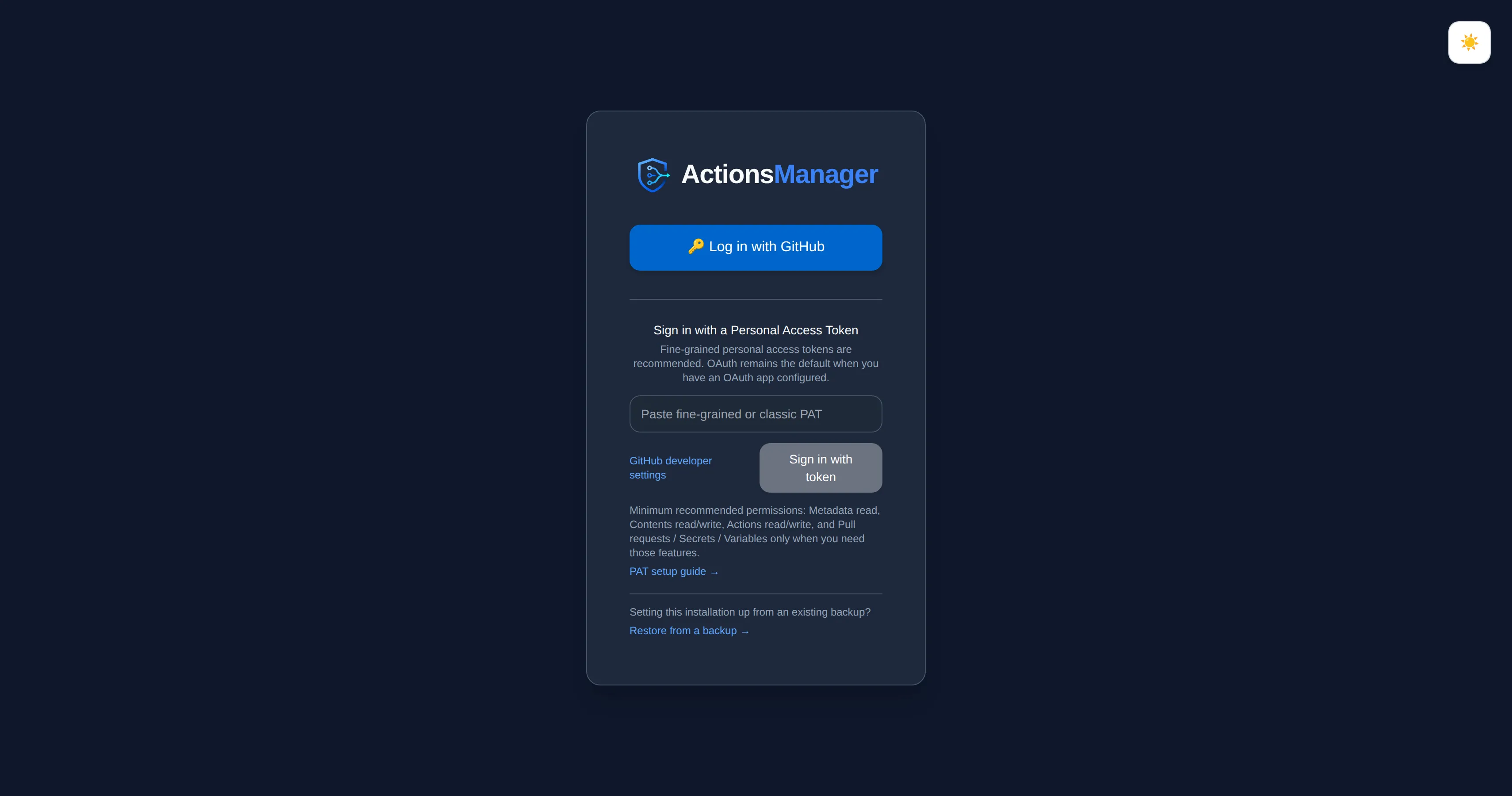
Section titled “Restoring into a fresh installation”Restore is offered in the browser only while an installation is new — before the first account signs in. Start the new container, open it, and the sign-in screen offers the option:
Choose the archive and ActionsManager checks it before writing anything, reporting what it holds and which version wrote it:
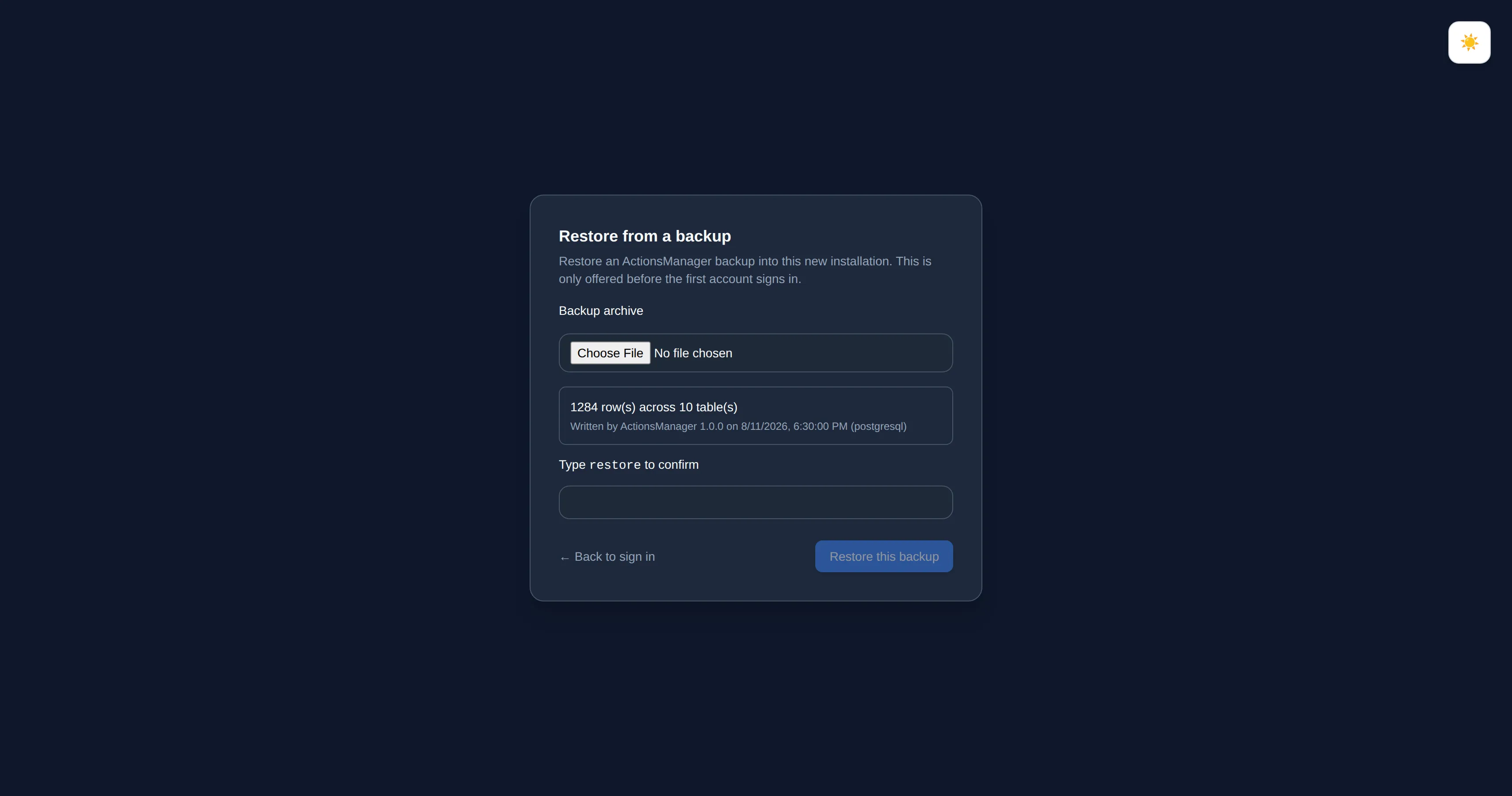
Nothing is applied until you type the confirmation phrase. If the archive was written under a
different SECRET_KEY, the report says so — the restore is still allowed, because everything
except saved tokens recovers normally:
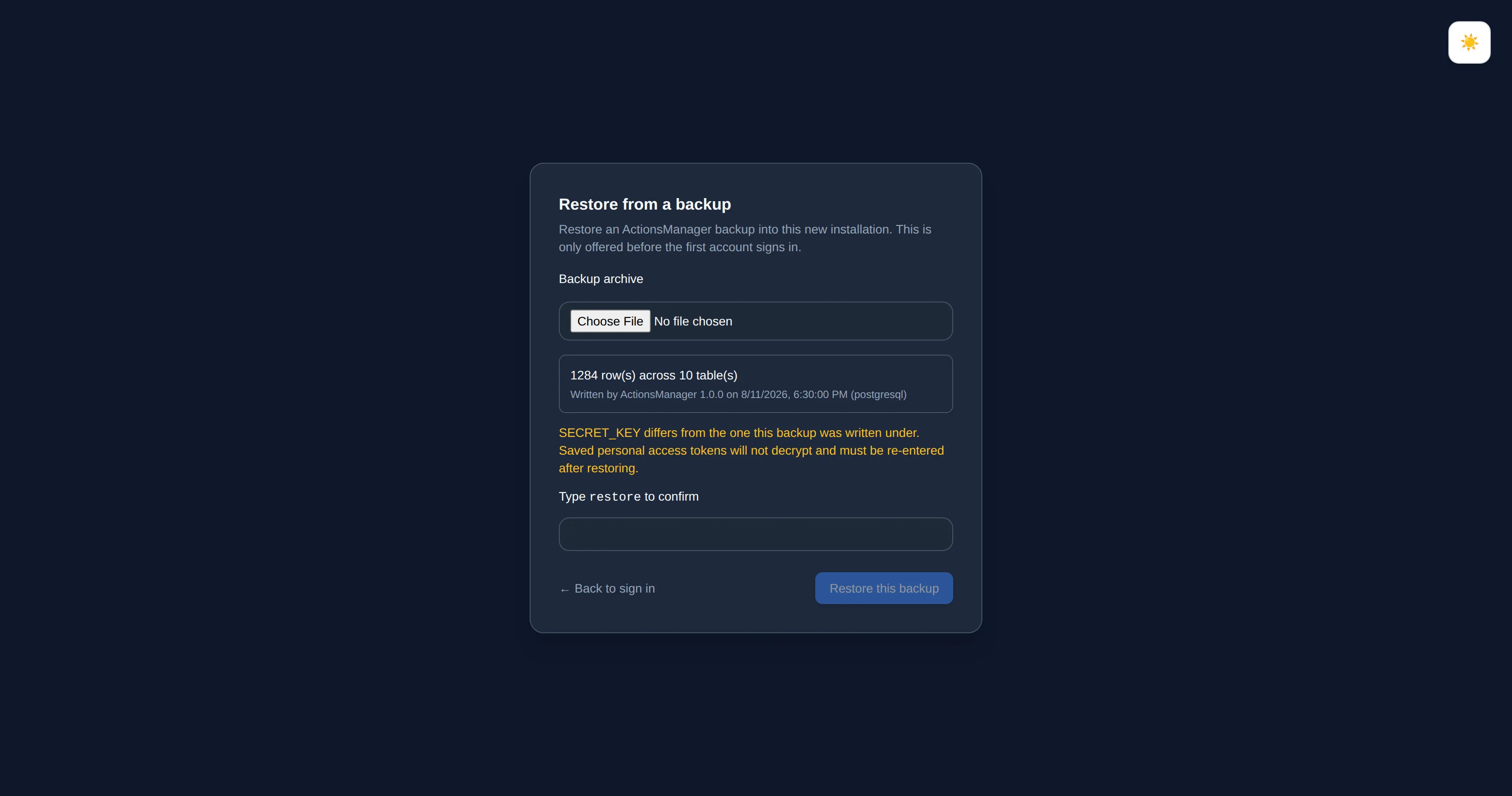
An archive that fails its checksum, or that came from a newer version of ActionsManager than the one you are restoring into, is refused outright and no confirmation is offered. Upgrade first, then restore. An archive with no workspace members, taken before anyone had signed in, is refused the same way: restoring it here would bring back data with nobody in the workspace.
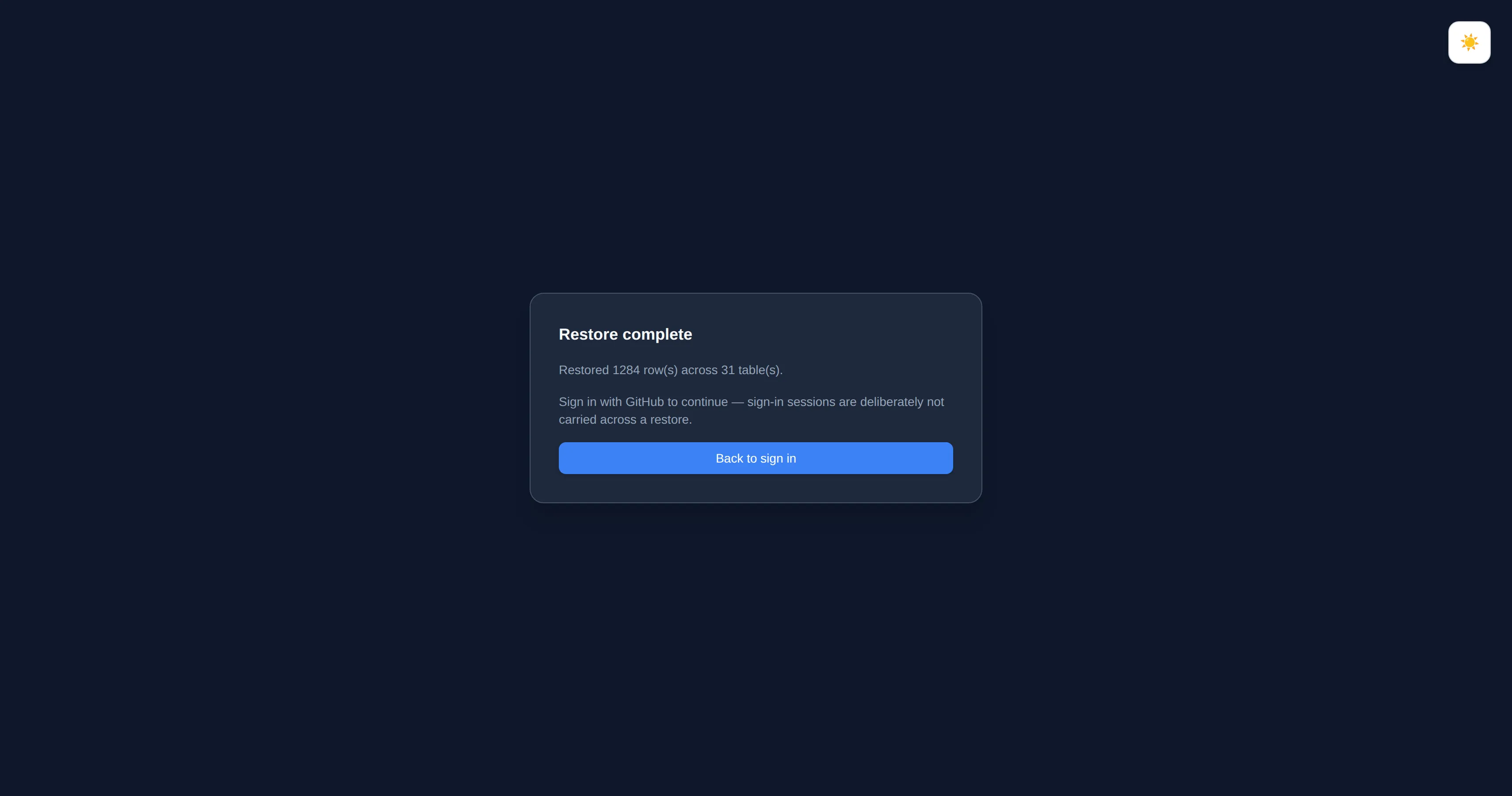
When it finishes, sign in as you normally would. Your account is already in the restored data with the role it had:
Restoring from the command line
Section titled “Restoring from the command line”Once an installation is in use, the browser no longer offers a restore — overwriting live data is a deliberate act, and it takes the CLI. This is also the only option that helps when an installation no longer starts, which is the situation backups exist for.
# Check an archive without changing anythingdocker compose -f docker-compose.self-hosted.yml exec -u appuser app \  python backup_cli.py validate --in /app/data/backup-20260811.tar.gz
# Report what a restore would do, without writingdocker compose -f docker-compose.self-hosted.yml exec -u appuser app \  python backup_cli.py restore --in /app/data/backup-20260811.tar.gz --dry-run
# Apply itdocker compose -f docker-compose.self-hosted.yml exec -u appuser app \  python backup_cli.py restore --in /app/data/backup-20260811.tar.gz
Restoring replaces all existing data. The CLI refuses an installation that already has users
unless you pass --force.
Every restore validates integrity and version compatibility before changing anything, applies the data in a single transaction, and then runs any migrations the archive predates. A rejected archive leaves the installation exactly as it was.
Restoring a backup taken before Managed Files removes the CODEOWNERS files its Caller and Reusable Workflow Projects kept, and any custom file at a CODEOWNERS path, as upgrading does. The files in your repositories are not touched.
Before you upgrade
Section titled “Before you upgrade”Take a backup before every upgrade. If a migration fails:
- Roll the image back to the version you were on.
- Restore the backup you took beforehand.
- Confirm the application starts and your projects are there.
Deployment guide → Backup & Recovery covers scheduling backups, automating them with cron, and the raw database-copy alternative.
Backing up a single project
Section titled “Backing up a single project”A backup covers the whole installation. To capture just one project’s configuration — to move it to another installation, or to snapshot it before a large change — use Export Config on that project’s config page instead.
The two are not interchangeable. A project export carries configuration only: no accounts, no credentials, no pull request history, no drift state. It cannot restore an installation, and it is available to anyone with access to the project rather than workspace admins alone.
Current limitations
Section titled “Current limitations”- Restoring through the browser is only available before the first account signs in. Everything after that is a CLI operation.
- Restoring replaces the whole installation; there is no way to restore a single project from a full backup.
- Importing a project export back into an installation is not supported yet — see issue #1883.
© 2026 ActionsManager. All rights reserved.