
Managed Files
Manage one repository file, such as CODEOWNERS, across a group of repositories, with one project owning the file in each repository.
What is a Managed Files project?
Section titled “What is a Managed Files project?”Some files configure a whole repository rather than a workflow. GitHub reads one CODEOWNERS file per branch, so a repository can only follow one set of code-ownership rules at a time. If two projects both delivered a CODEOWNERS file to the same repository, the last pull request merged would win, and each project would then report the other’s change as drift.
A Managed Files project owns one such file for a group of repositories. It manages exactly one file kind, chosen when the project is created and fixed from then on. Each repository can be in one project per file kind, so for any repository there is never more than one project writing its CODEOWNERS.
The kind available today is CODEOWNERS. A repository can be in a CODEOWNERS project and in any number of Caller and Reusable Workflow Projects at the same time.
Managed Files projects are listed only in their own section, never on the Projects page.
The Managed Files section
Section titled “The Managed Files section”Open it from the Managed Files tab in the app header, between Projects and Managed Actions.
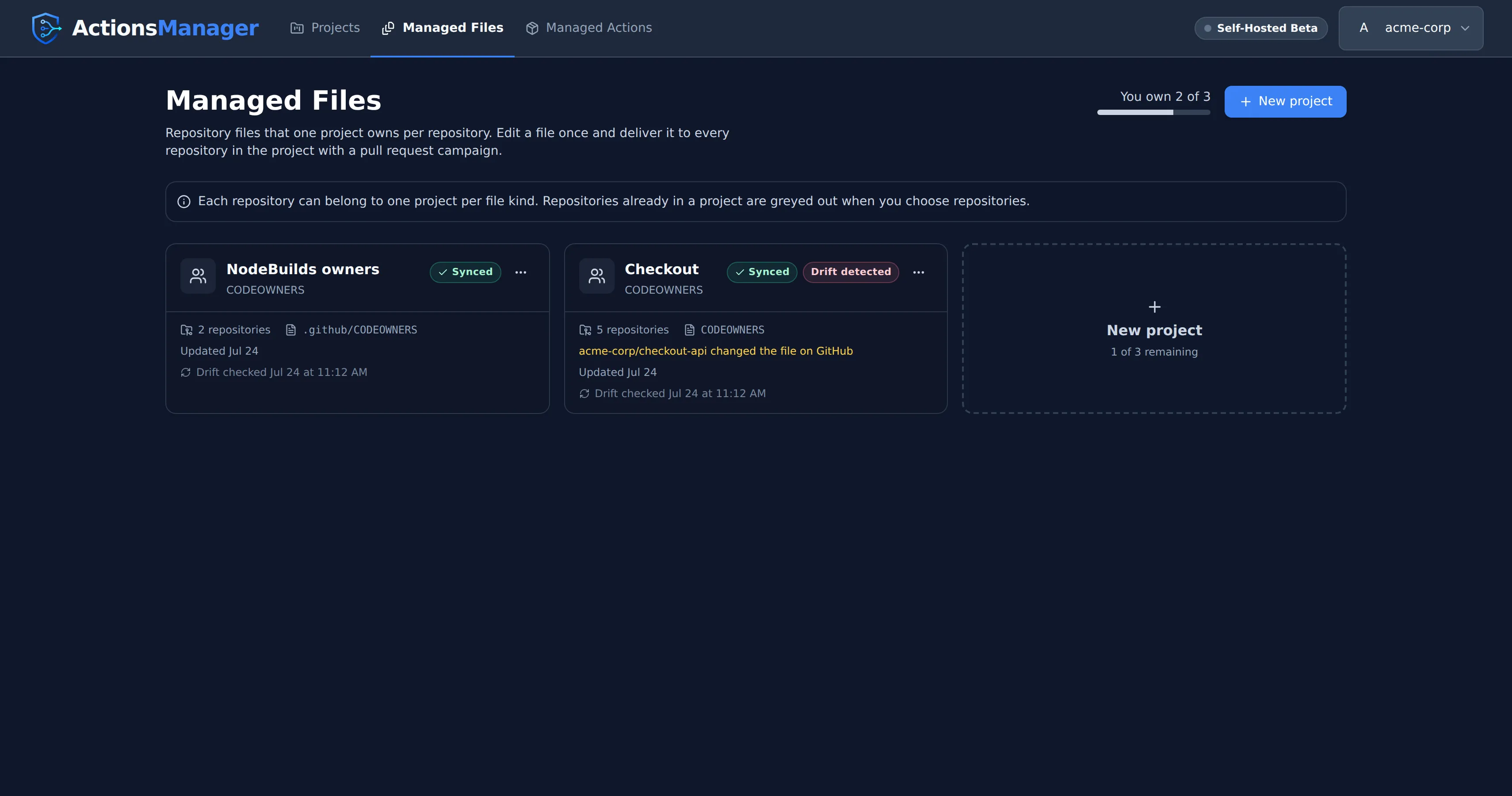
Cards use the same layout as on the Projects page. Each shows the project’s name with its file kind under it, its state beside the menu, its file path, how many repositories it covers, and when its file was last checked for drift. A drifted project names the repository that changed the file on GitHub. A project owned by someone else in your workspace says who owns it.
Creating a project
Section titled “Creating a project”Choose New project and give the project:
- A name.
- A file kind. It can’t be changed after the project is created.
- Public or private repositories, as for any project. Switching clears the repositories you picked.
- Repositories. A repository another project of the same kind already uses is greyed out, can’t be selected, and says which project uses it, or “Used by another project” when that is a project you can’t see.
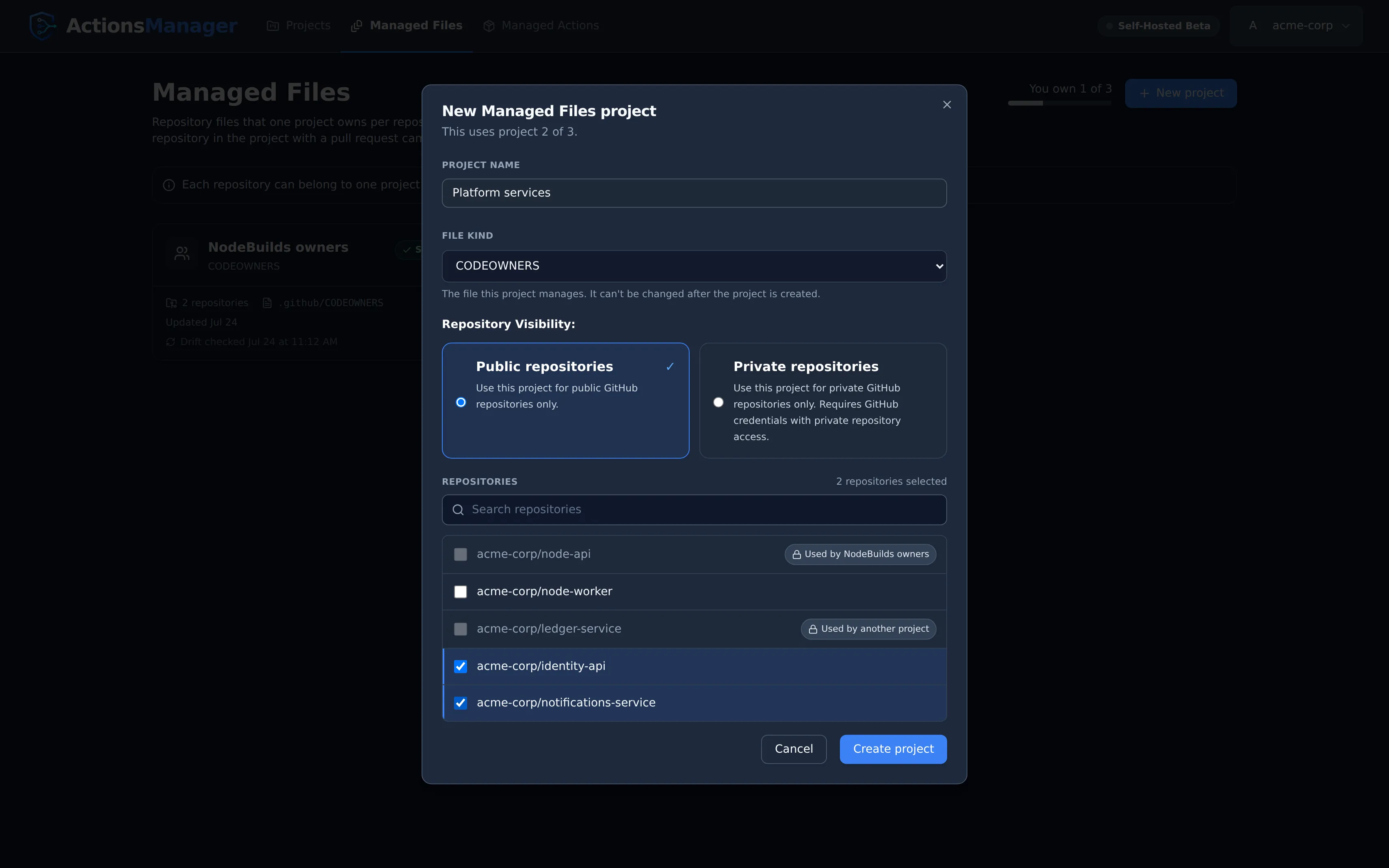
The server enforces the same rule, so two people adding the same repository at the same moment can’t both succeed: the second is refused, and told which project uses it if they can see that project.
How many projects you can have
Section titled “How many projects you can have”Managed Files projects have their own limit, counted across every file kind: 3 on the self-hosted beta. They don’t count toward the Caller Workflow (4) and Reusable Workflow (2) project limits, and those projects don’t count toward it. The section shows how many you own, and New project explains when you have reached the limit.
Editing and delivering the file
Section titled “Editing and delivering the file”A Managed Files project opens on its file, in the same editor and with the same PR campaigns as every other project:
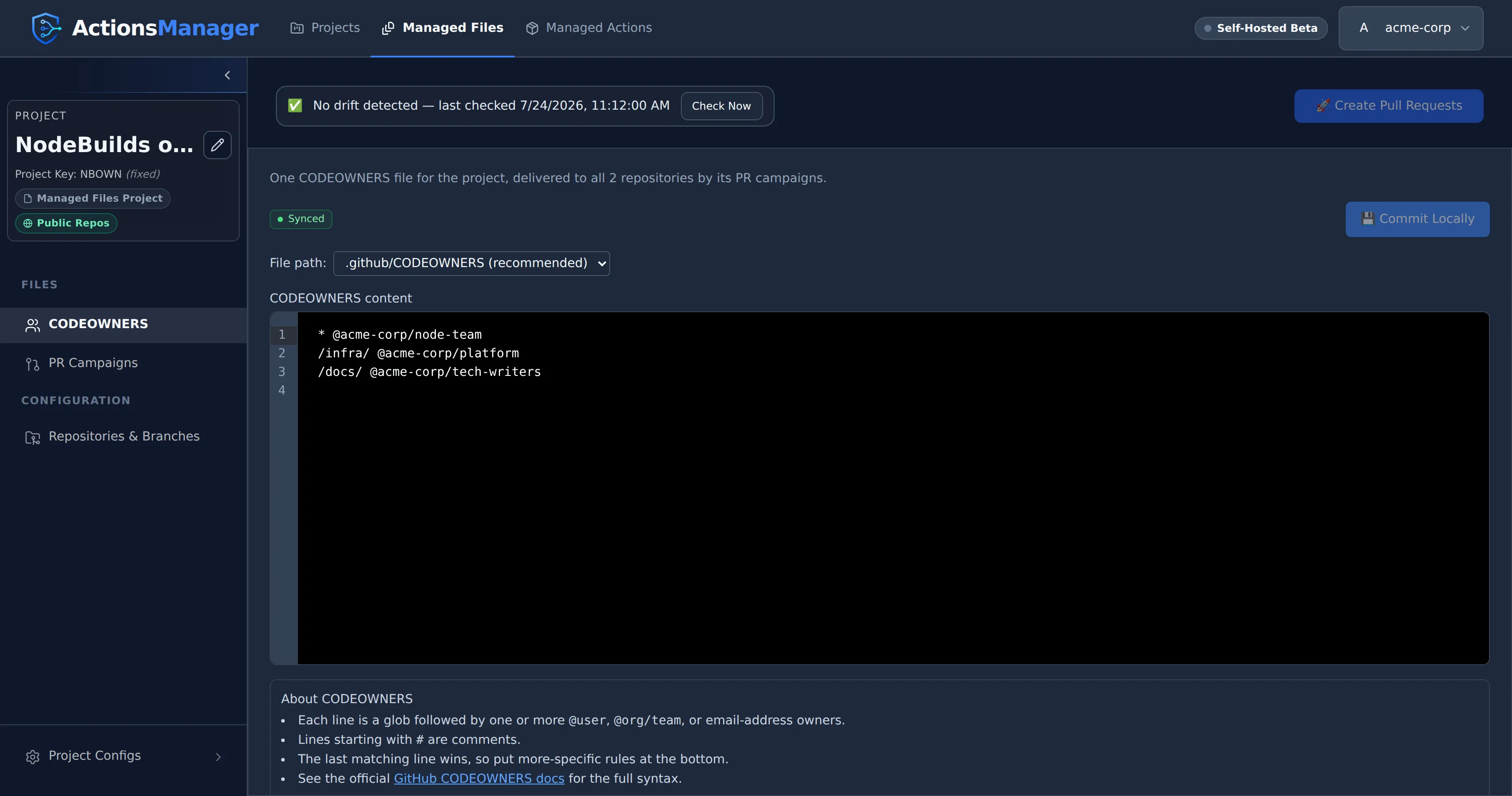
- Commit Locally saves your change. The file reads Draft changes until a campaign delivers it.
- Create Pull Requests opens one pull request per repository and branch, carrying only the
file. Each is called
[Actions Manager] Update <project key> files; a campaign name you give heads its description. - The file can live at
.github/CODEOWNERS,CODEOWNERSordocs/CODEOWNERS, the places GitHub reads it from, in that order. - A project with no file yet can start from one of its repositories’ copies: choose the repository and Load from repository, then Commit Locally.
How the file’s drift is detected and resolved is described in CODEOWNERS Drift.
The project has only the sections that apply to one file:
- Repositories & Branches, with branch settings. Repositories another project of the kind uses are locked here too, and adding a repository offers to deliver the file to it. Saving a change here makes a synced project a draft, so Create Pull Requests can deliver the file to new repositories and branches; the ones that already have it are left alone.
- PR Campaigns.
- Project Configs: Project Info, Project Members, Drift Detection, Export Config and Danger Zone.
It has no workflows, build metrics, deployment environments, environment variables, secrets, rulesets, validation repository, naming mode or project color. While it’s open, the app header marks Managed Files as the current section, and that tab returns to it.
CODEOWNERS moved here from workflow projects
Section titled “CODEOWNERS moved here from workflow projects”CODEOWNERS used to be managed in Caller and Reusable Workflow Projects. It is now managed only here:
- A Caller or Reusable Workflow Project can’t save or import a CODEOWNERS file. Where its CODEOWNERS row was, Project Files says CODEOWNERS is now managed in Managed Files, with a link to this section.
- No project can hold a custom file at a path GitHub reads CODEOWNERS from.
- Upgrading deletes the CODEOWNERS files that Caller and Reusable Workflow Projects kept, and any custom file at a CODEOWNERS path, along with their delivery and drift records. Files in your repositories are not touched. To keep managing one, create a CODEOWNERS project for those repositories and load the file from one of them. A project whose only drift was in those files stops showing drift.
- A change to one of those files that was committed locally but never delivered exists only in ActionsManager, so upgrading loses it. Deliver it, or copy it, before you upgrade.
- Rolling back an older campaign of a workflow project leaves any CODEOWNERS file it delivered as it is, since it belongs to Managed Files now. The rollback preview names the file it leaves.
Related Topics
Section titled “Related Topics”- Projects — the workflow project types
- PR Campaigns — how the file is delivered
- Drift Detection — when the file changes on GitHub
© 2026 ActionsManager. All rights reserved.