
Projects
Projects are the primary organizational unit in ActionsManager, grouping related repositories for coordinated workflow management.
What is a Project?
Section titled “What is a Project?”A project in ActionsManager is a named collection of repositories that share a workflow management scope. Projects are the unit you operate on — permissions, workflows, secrets, and rollouts are all coordinated at the project level.
Instead of managing workflows repository by repository, you group related repositories into a project and apply changes to all of them in a single operation.
Project Types
Section titled “Project Types”ActionsManager uses two workflow project types that reflect the two sides of GitHub Actions reusability:
Caller Workflow Project
Section titled “Caller Workflow Project”A Caller Workflow Project (referred to internally as standard) manages the repositories whose workflows call reusable workflows using the uses: directive.
Use this project type when you want to:
- Manage multiple repositories that share a common workflow pattern
- Apply, update, or remove caller workflows across a fleet of repositories
- Keep all repositories synchronized against a shared workflow definition
Reusable Workflow Project
Section titled “Reusable Workflow Project”A Reusable Workflow Project (referred to internally as rwx) manages the producer side — the repository that defines and publishes the reusable workflows that other repositories call.
Use this project type when you want to:
- Author and version reusable workflow definitions centrally
- Track which caller workflows across your organization reference your reusable workflows
- Propagate changes from the producer to all consumers
Working Together
Section titled “Working Together”The real power of ActionsManager comes from managing both project types together. When a reusable workflow changes in a producer project, ActionsManager identifies which caller projects are affected and can roll out the update across the entire consumer fleet.
Managed Files Project
Section titled “Managed Files Project”A Managed Files project manages one repository file, such as CODEOWNERS, for a group of repositories, with one project per repository for each kind of file. These projects are listed in their own section; see Managed Files.
The Projects Page
Section titled “The Projects Page”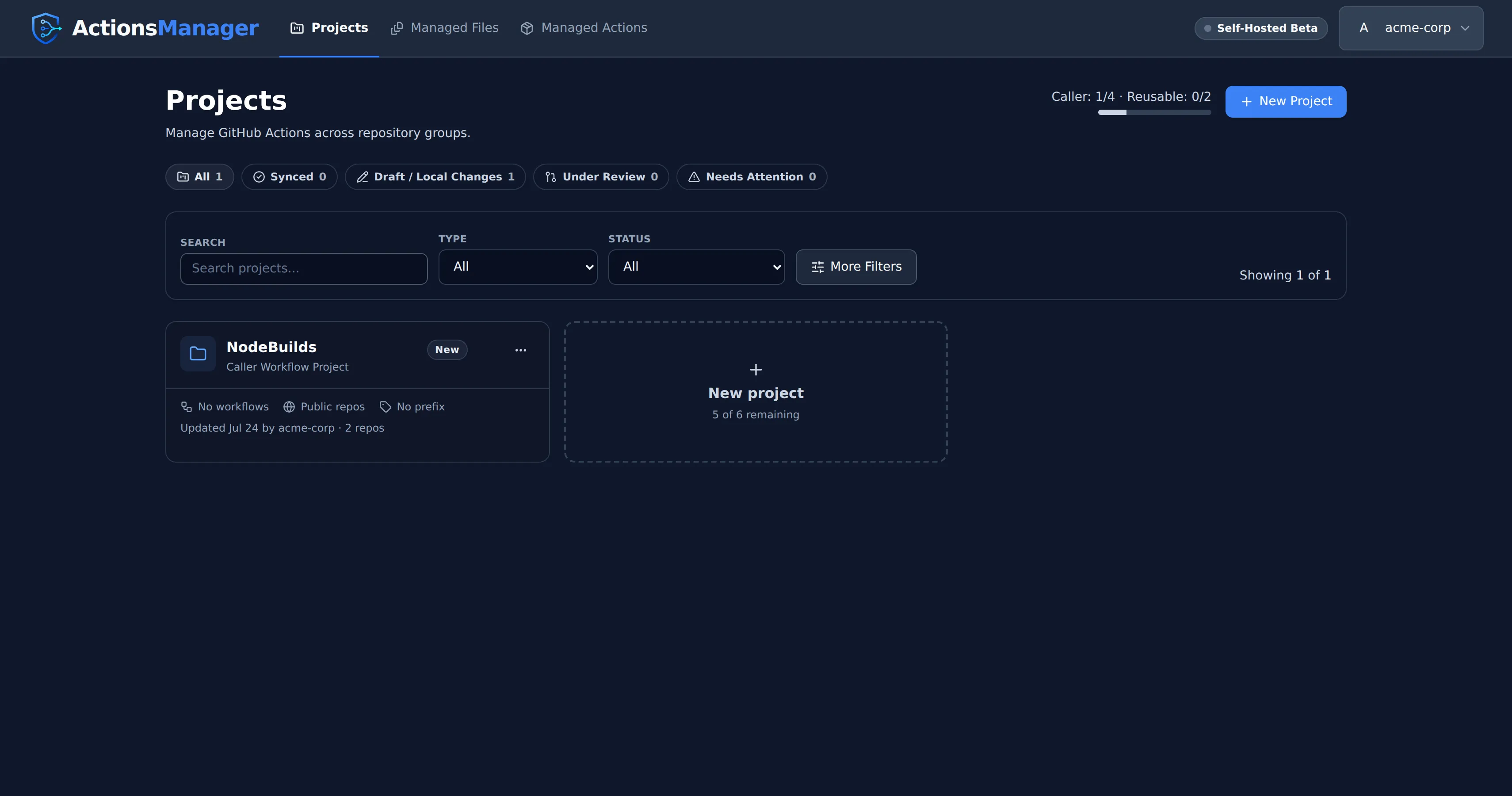
Each project is a card:
- The header has the project’s identity color, its name, its type (“Caller Workflow Project” or “Reusable Workflow Project”) under the name, and its status beside the three-dot menu. A drift chip appears beside the status when there is something to report about drift.
- The body below the divider shows the workflow count, whether the project uses Public repos or Private repos, and Prefix or No prefix naming. Under that are when the project was last updated and by whom, and when drift was last checked.
Click anywhere on a card to open the project. Cards are laid out three to a row on wide screens, two on medium and one on narrow ones. Managed Files uses the same card layout, grid and dashed New project box.
The last item in the grid is a dashed New project box. It shows how many projects your plan has room for (“2 of 3 remaining”, counted across both project types) and is hidden once you reach your limit. Beside the New Project button, a small meter shows your usage: one figure when your plan has a single project limit, or Caller and Reusable figures when it limits each type. Your plan’s name, with an Upgrade link when it has one, is a chip beside your avatar in the app header on every page.
Creating a Project
Section titled “Creating a Project”- Click New Project in the dashboard, or the dashed New project box
- Choose a project type (Caller Workflow or Reusable Workflow)
- Name the project
- Add repositories to the project
Managing Repositories
Section titled “Managing Repositories”Within a project you can:
- Add repositories — include repositories from your GitHub account or organizations
- Remove repositories — take a repository out of scope without deleting its workflows
- Configure per-repository settings — specify branches, labels, and delivery preferences
Adding a Repository to a Project That Already Has Files
Section titled “Adding a Repository to a Project That Already Has Files”Adding a repository does not push anything to it. The repository joins the project’s scope, but the project’s existing files (its workflows and custom files, or a Managed Files project’s file) are not in it yet — and because nothing has ever been delivered there, it is not reported as drift either. Without a prompt, a newly added repository could sit empty indefinitely with nothing saying so.
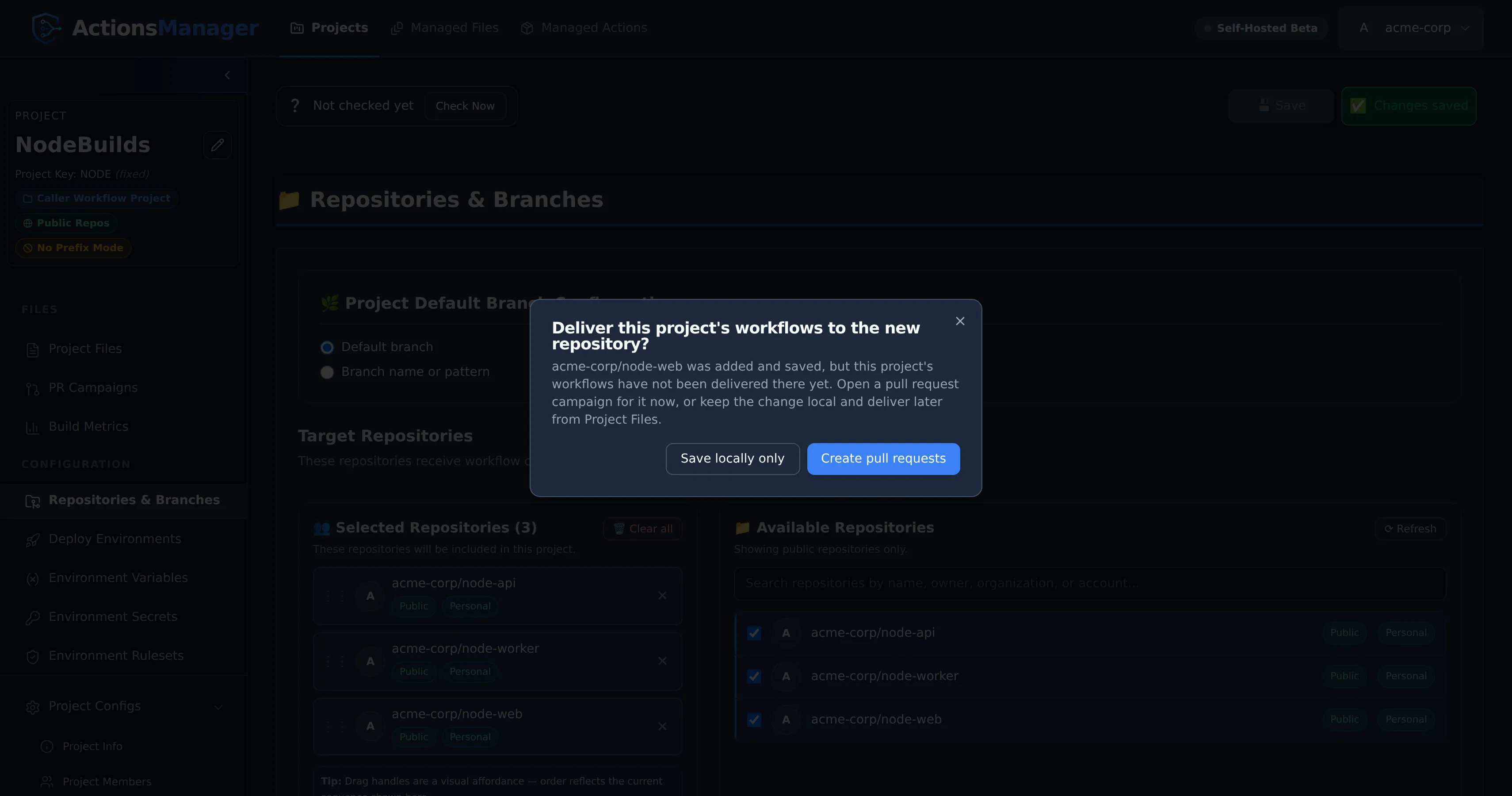
So when you press Save in Repositories & Branches having added one or more repositories, ActionsManager asks how to deliver the project’s workflows to them (a Managed Files project’s file, for one of those):
| Choice | What happens |
|---|---|
| Save locally only | Nothing is pushed. The repository stays in the project, and no drift is reported. Deliver whenever you’re ready from Project Files (in a Managed Files project, from the file’s own item, such as CODEOWNERS). |
| Create pull requests | Opens a PR campaign limited to the repositories you just added. Every workflow and custom file in the project, or a Managed Files project’s file, is pre-selected, because the new repository has none of them. A custom file changed on GitHub is offered unticked, so overwriting that change stays your choice. |
Dismissing the prompt is the same as choosing Save locally only — the repository was already saved before the prompt appeared, so nothing is lost either way.
Keeping Track of What’s Still Waiting
Section titled “Keeping Track of What’s Still Waiting”Choosing Save locally only is not the end of the story, so ActionsManager keeps a standing reminder until the workflows (or a Managed Files project’s file) land. It appears in three places, each a different level of detail:
- A count beside Repositories & Branches in the sidebar, so the reminder is reachable from anywhere in the project.
- A note at the top of the project, next to the drift status row, naming the repositories and offering to open the pull requests.
- A “Not delivered yet” badge on each waiting repository in the Selected Repositories list.
None of it is styled as a warning, because nothing is wrong — the repository simply hasn’t received the files yet. All three clear themselves: opening a pull request pauses the reminder while it is in review, and merging it removes the repository from the list for good.
The reminder only appears for repositories ActionsManager has genuinely never delivered to. In a project with workflows that means its workflows: a repository that received only a custom file is still waiting for them. A Managed Files project waits on its file instead. It stays quiet on a project that has never been drift-checked, because until the first check there is no evidence either way, and guessing would mean telling you that repositories you delivered to months ago are still waiting.
While a repository is waiting, Create Pull Requests stays available even when the project is synced, and opens the campaign for the waiting repositories, so you can deliver to them at any time.
One thing the campaign does not carry:
- Linked reusable workflows. Those are delivered to the repository of the Reusable Workflow Project that owns them, not to caller repositories, so a new caller repository does not need them pushed to it.
A Caller Workflow Project’s own reusable workflows are different: they are delivered to the project’s repositories like its regular workflows, so the campaign for a new repository pre-selects all of them, as it does the regular workflows.
Removing a repository never prompts — there is nothing to deliver.
Branch Configuration
Section titled “Branch Configuration”Repositories & Branches decides which branches a project writes to. The same answer is used for drift detection, so a project is always compared against the branches it actually delivers to — never against a branch nobody chose.
| Option | What it targets |
|---|---|
| Default branch | Each repository’s own GitHub default branch |
| Branch name or pattern | Every branch matching the name or regular expression you enter (main, release-.*, feature/auth) |
Pattern mode adds a Max branch age (1–30 days, 30 by default): only branches with a commit inside that window are targeted, so stale branches matching the pattern are left alone. If a pattern matches nothing — or every match is older than the window — ActionsManager falls back to the repository’s default branch.
Per-repository override. Each repository in the list either uses Use project default or Override for this repository, which gives that one repository its own option, pattern and age window. Everything else in the project keeps the project setting.
Ordering Projects
Section titled “Ordering Projects”The Projects dashboard keeps the arrangement you choose. Drag a card by its grip handle (to the left of the three-dot menu, shown when you hover over the card or focus the handle, and always visible on touch screens) and drop it anywhere in the grid.
- Opening or editing a project no longer moves its card. The dashboard used to sort by last-updated time, so simply viewing a project pushed it to the front.
- Your order is your own. It is saved per user, so rearranging your dashboard never changes what a teammate sees.
- It follows you. The order persists across refreshes, sessions, browsers and devices, because it is stored on the server rather than in the browser.
- New projects appear at the end, so an existing arrangement is never disturbed.
- Reordering is disabled while searching or filtering. A filtered grid only shows some of your projects, and saving from that view would lose the position of the hidden ones. Clear the filters to re-enable the handles — your full order is preserved while filtering.
Dragging never opens a project: clicking a card still navigates, and the three-dot menu keeps working as before. If an order fails to save, the grid returns to its previous arrangement and shows an error rather than leaving the dashboard and the server out of step.
The first time you open the dashboard, projects are arranged most-recently-updated first and that arrangement is saved as your starting point.
Project Permissions
Section titled “Project Permissions”Access to a project is tied to your GitHub authentication. You can only manage repositories that your configured GitHub token or OAuth session can access.
Renaming a Project
Section titled “Renaming a Project”A project’s display name is editable in place from the project sidebar. The project code is not — it is fixed at creation, and the workflow filenames delivered in prefix mode are built from it, so a project rename never renames or rewrites a managed file.
Project names are unique per owner. A rename to a name the project’s owner already uses for another project, in any capitalization, is refused and the name stays as it was. Creating a project with a name you already use is refused the same way, and your existing project is left untouched. A name only another owner uses is free.
It is not completely invisible to your repositories, though. ActionsManager writes the project name into each campaign pull request’s description, as a link back to the project’s PR Campaigns view. Pull requests opened before the rename keep the old name, and their link no longer resolves; pull requests opened after it carry the new one. Rename between campaigns if that matters to your reviewers.
Renaming a project requires editor access to it. Project viewers can open the project and read it, but the rename is rejected. Project owners and workspace admins always qualify.
Deleting a Project
Section titled “Deleting a Project”Delete a project from Project Configs → Danger Zone. The dialog asks what happens to the project’s files in GitHub: its workflows, reusable workflows and custom files, or a Managed Files project’s file.
| Choice | What happens |
|---|---|
| Delete the project, keep its files in GitHub | The project is deleted from ActionsManager at once. Its files stay in your repositories exactly as they are, and nothing manages them any more. |
| Delete the project and remove its files from GitHub | ActionsManager opens a PR campaign named Delete project <name>: one pull request per repository and branch it delivered any of the project’s files to, each removing all of them from that branch. Nothing is committed directly. |
Before you confirm, the dialog lists those pull requests by repository and branch, with the files each one removes. The list comes from ActionsManager’s record of what it delivered where, so each file is removed at the path it was delivered to, on every branch it was delivered to, including branches the project no longer targets. A file ActionsManager has no record of delivering, such as one delivered by an earlier release, is listed as not removed: if it is in GitHub, remove it yourself.
If the record shows nothing delivered, or every file is already gone from its branch, there is nothing to review and the project is deleted at once.
While the pull requests are open
Section titled “While the pull requests are open”The project shows Deleting and is read-only for everyone, workspace admins included. Its pull requests can still be merged and closed from PR Campaigns.
- When every one of them has merged, the project is deleted.
- Closing any of them calls the deletion off. The project stays and can be edited again. A file a merged pull request already removed is shown as Committed Locally, ready to deliver again; the others stay in GitHub unchanged.
If a pull request could not be opened for some repository and branch, the result names it. The files there are still delivered, so once the other pull requests have merged the deletion is called off rather than finished. If no pull request could be opened at all, nothing changes and the project is not deleted.
When removing the files is not available
Section titled “When removing the files is not available”The second choice is disabled, with the reason shown, when:
- the project has an open pull request, or another project’s open pull request carries one of its files. Merge or close them first.
- it is a Reusable Workflow Project that Caller Workflow Projects link to. Removing its reusable
workflows would break the
uses:lines that call them. Unlink those projects first. - some of its files are in repositories that are no longer in the project. Add those repositories back so their files can be removed too.
Deleting the project and keeping its files is always available.
Secrets and variables
Section titled “Secrets and variables”Secrets, variables and deployment environments cannot be removed by a pull request, so they are a
separate checkbox: Also delete secrets and variables now. With either choice above, it deletes
the project’s secrets and variables (those named with its AM_<CODE>_ prefix, or, for a project
that does not use the prefix, the ones it tracks) from its repositories immediately. This cannot
be undone, and calling the deletion off does not bring them back.
Unless you also tick Keep deployment environments, every deployment environment in the project’s repositories is deleted as well, not only ones the project created.
Related Topics
Section titled “Related Topics”- Workflows — manage workflow content across project repositories
- PR Campaigns — roll out changes through reviewable pull requests
- Drift Detection — detect when repositories diverge from the managed state
- Reusable Workflows — manage producer-consumer workflow relationships
© 2026 ActionsManager. All rights reserved.