
Workflows
Manage GitHub Actions workflow files across all repositories in a project from a single interface.
Overview
Section titled “Overview”ActionsManager treats workflow management as a fleet operation, not a per-repository task. When you define or update a workflow in a project, ActionsManager tracks every repository that should have that workflow and what state it should be in.
Workflow Operations
Section titled “Workflow Operations”Applying a Workflow
Section titled “Applying a Workflow”Applying a workflow pushes the managed workflow definition to the .github/workflows/ directory of each repository in the project, through a PR Campaign: one pull request per repository, which you review and merge.
Updating a Workflow
Section titled “Updating a Workflow”When you edit a workflow definition in ActionsManager, the platform:
- Updates the managed workflow content
- Identifies which repositories in the project are affected
- Delivers the updated workflow via your configured delivery method
Saving a workflow requires editor access to the project. Project viewers can open a workflow and read its YAML, but the save is rejected. Project owners and workspace admins always qualify. See Permissions for who gets editor access and how it is granted.
Regular or reusable
Section titled “Regular or reusable”The trigger decides, as it does on GitHub: a workflow whose on: includes
workflow_call is a reusable workflow. Add workflow_call to a regular workflow and
save, and it moves to the reusable workflows straight away; remove it and it moves
back. It stays the same workflow, with its history.
- Only an edit changes the kind. Saving the project without touching a workflow leaves it as it is.
- YAML that does not parse, or has no
on:, keeps the workflow’s current kind. - A Reusable Workflow Project’s workflows always stay reusable, because caller
projects that link them call them through
workflow_call.
The save is refused when:
| Refused when | What to do |
|---|---|
| An open PR campaign carries the workflow | Merge or close that campaign, then change the trigger |
| Another workflow in this project has the same name (a pair left from before names had to be unique across both kinds) | Rename one of them first |
Renaming a Workflow
Section titled “Renaming a Workflow”Rename a workflow from the filename field at the top of the editor: select the edit
control beside the name, type the new one, and save. You always edit the bare stem —
.yml is a locked segment to the right of the field in both naming modes, and in
prefix mode the project prefix is locked to the left of it. Typing the extension
yourself is harmless; it is stripped.
The edit control is disabled outright, rather than refusing later, for a workflow that cannot be renamed here at all:
- A linked reusable workflow is named by the Reusable Workflow Project that owns it. Rename it there.
- A workflow Under Review is locked while its pull request is open. Choose Unlock to Edit in the editor first (see Editing a File Under Review), or merge or close the pull request.
Renaming changes the filename the workflow is delivered under, so ActionsManager shows what the rename would do before it takes the new name.
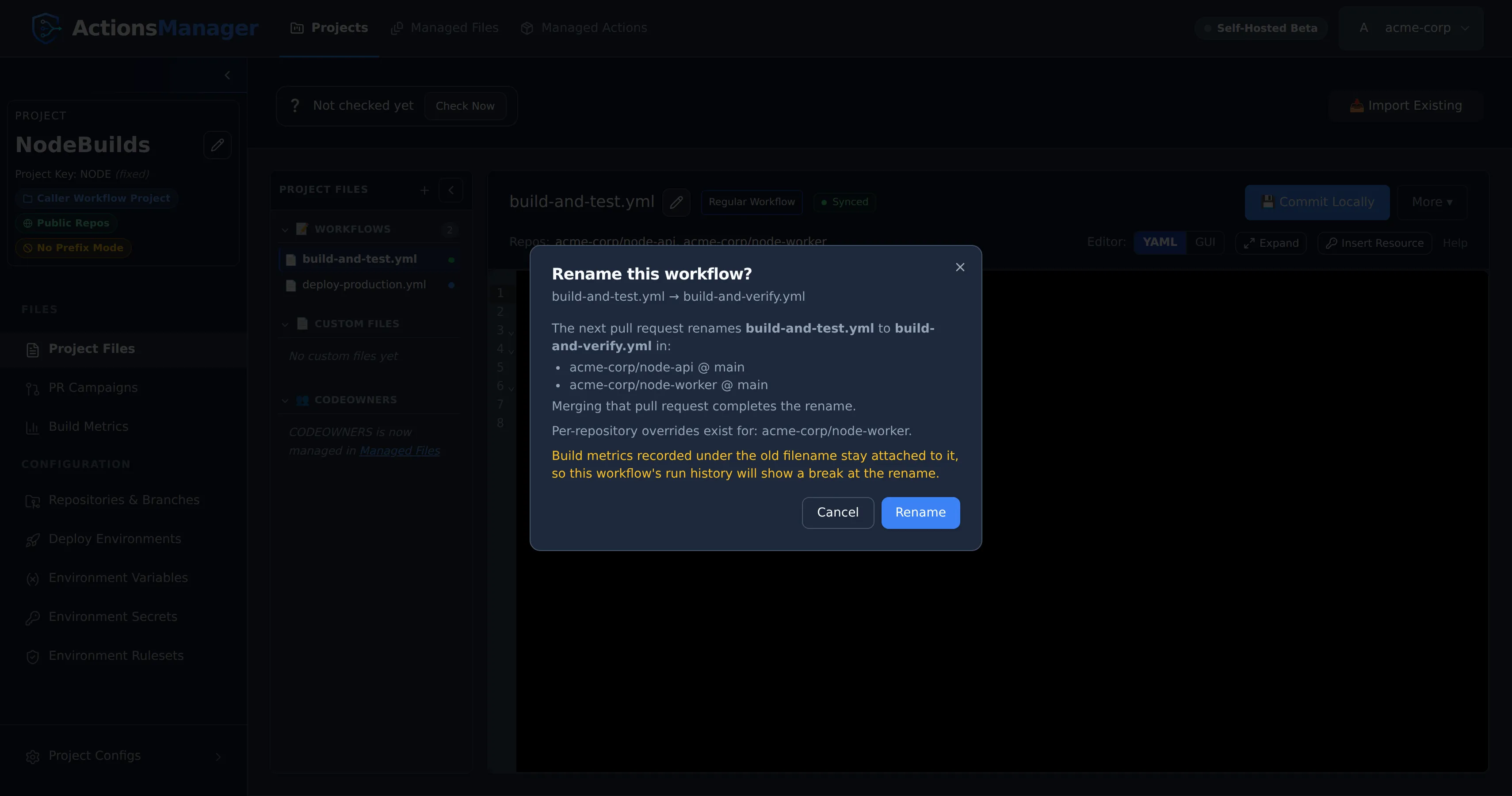
The dialog reports:
- Where the rename lands — every repository and branch that currently holds the
file under its old name, as
repo @ branch. Merging the next pull request completes the rename in those places. - Caller workflows that reference it by filename — listed by project and workflow
name. ActionsManager does not rewrite a caller’s
uses:line; that is yours to update. - Per-repository overrides that exist for the workflow, by repository.
- Build metrics break at the rename — shown on every rename. Runs recorded under the old filename stay attached to it, so the workflow’s Build Metrics history starts fresh under the new name. This is the one consequence of a rename that cannot be undone by renaming back.
- An overwrite warning, in no-prefix projects only, when a file already sits at the new name in a repository and ActionsManager did not put it there. Delivering would overwrite it.
A repository the check could not read is still listed, marked (could not be checked) — so the list is where the rename may land, not a confirmed inventory. When the check reaches nothing at all, the dialog can say nothing has been delivered while also warning that the list may be incomplete; read the two together and re-run the rename once GitHub is reachable rather than trusting the first line.
If the impact check itself fails outright, renaming is still safe to attempt: the save enforces the refusals below either way, and the next pull request still carries the rename. What you lose is the list of repositories it will touch.
Confirming the dialog is the commit. Having agreed to what the rename does, you do not then press Commit Locally for it to be saved.
The rename is delivered as a rename
Section titled “The rename is delivered as a rename”Both halves of the rename ride one campaign branch: the file is written at its new path and removed from the old one in the same pull request. The pull request reads as a rename, and merging it completes the change in one step.
The old file is the one ActionsManager delivered to that repository and branch, whatever
the workflow has been called since: renaming ci to ci2 and then ci3 before
delivering removes ci.yml, and renaming back to ci removes nothing. Each repository
and branch keeps its own old file until a campaign reaching it merges, so a campaign to
some repositories leaves the rename still to be delivered to the others, and a closed
campaign is carried by the next one. Until then, drift keeps checking the file at its
delivered name, so a rename is never reported as a deletion.
When a rename is refused
Section titled “When a rename is refused”Some renames cannot be performed safely, and ActionsManager refuses them rather than leaving the result half-applied. The dialog names the reason and offers no Rename button, and the save rejects the same cases with the same reason if something renames anyway — with one exception, noted in the table: a capitalisation-only change is refused by the dialog, but the save keeps the old casing and reports success rather than failing, because raising there would abandon a multi-workflow save part-way.
| Refused when | What to do |
|---|---|
| The workflow is Under Review | Merge or close its pull request, then rename. The edit control is disabled first, so this usually shows as a locked field rather than a dialog |
| An open pull request already carries the workflow | Merge or close it, then rename |
| A reusable workflow is locked by an open PR campaign | Merge or close that campaign, then rename |
| It is a delivered reusable workflow and caller workflows reference it by filename | Update their uses: lines first — ActionsManager does not rewrite caller YAML |
| Another workflow in this project already has that name | Pick a different name. Names must be unique within a project across both kinds: a regular and a reusable deploy would be delivered to the same file, so whichever went last would overwrite the other |
| The new name belongs to a workflow queued for removal from GitHub | Merge or close that removal campaign before reusing the name |
| The workflow itself is queued for removal from GitHub | Merge or close its removal campaign, then rename |
| The change is only to capitalisation | Rename to something different first, then to the casing you want. This is the one row the save does not enforce: sent directly it keeps the old casing and reports success |
Renaming requires editor access to the project, like any other save.
Removing a Workflow
Section titled “Removing a Workflow”Removing a workflow asks how far the removal should reach:
| Option | What happens |
|---|---|
| Remove from ActionsManager only | The workflow leaves the project. The .github/workflows/ file stays in your repositories exactly as it is, and ActionsManager stops tracking it — no more drift detection, delivery, or version history for it. |
| Delete from ActionsManager and GitHub | The workflow leaves the project and the .github/workflows/ file is deleted from every repository in the project. |
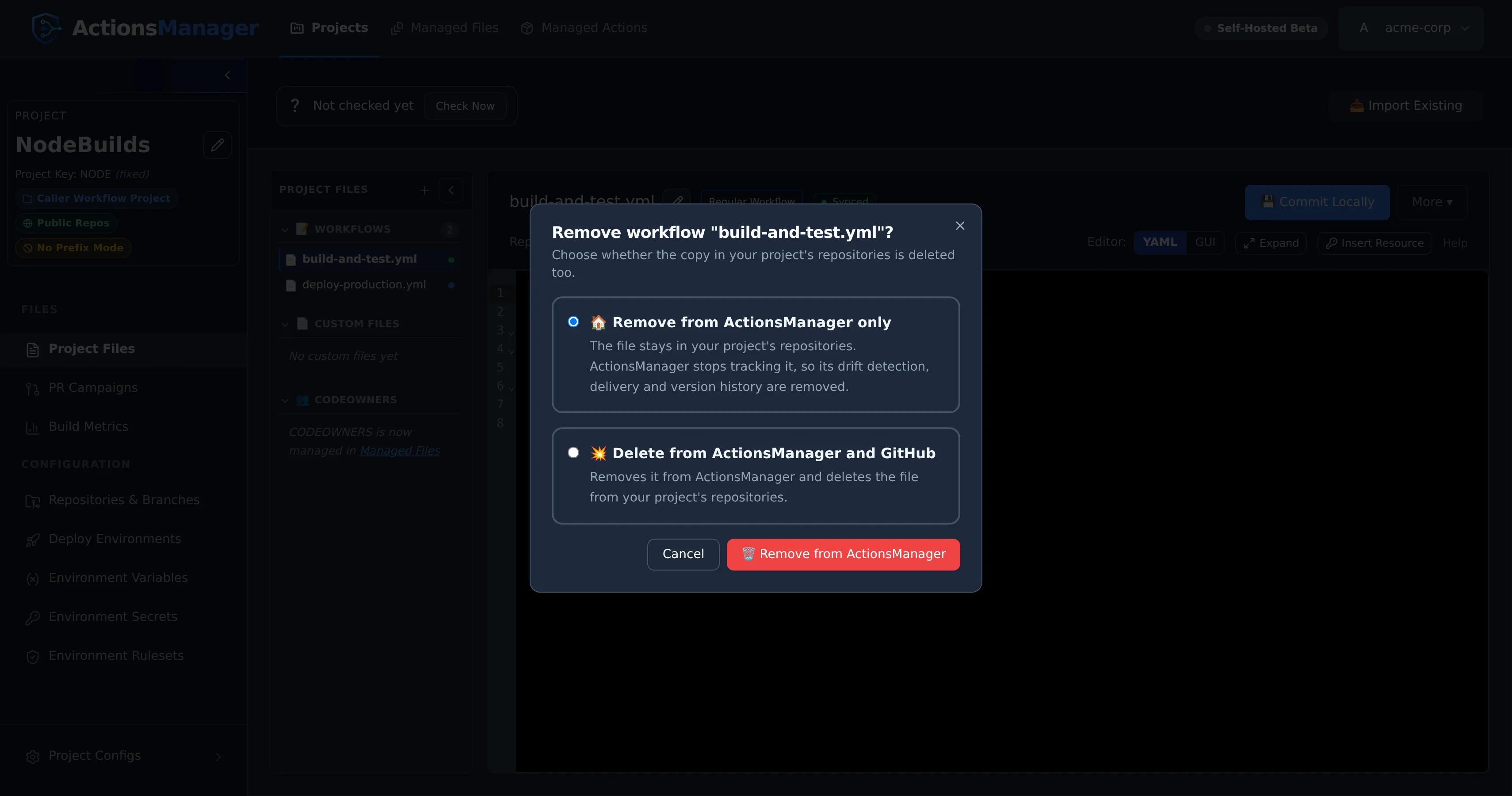
Remove from ActionsManager only is preselected. Use it to hand a workflow back to a repository’s own maintainers, or to stop managing a workflow centrally without disturbing the pipelines currently running from it.
Delete from ActionsManager and GitHub then asks how the removal should reach your repositories:
| Option | What happens |
|---|---|
| Create a PR Campaign | Opens a PR Campaign whose only change is removing the workflow, tracked and merged under PR Campaigns like any other delivery. The workflow stays listed until that campaign merges. |
| Commit directly to the target branch | The file is deleted from every branch ActionsManager delivered it to, immediately and with no review. |
Either way, the file is removed where ActionsManager delivered it: on every branch it was delivered to, including any the project no longer targets, and under the name it was delivered with — a workflow renamed since, whose rename has not been delivered yet, is removed under its old name. A workflow ActionsManager holds no delivery record for, such as one delivered by an earlier release, is removed under its current name from the branches the project targets now.
Create a PR Campaign is preselected. It stays available even for a workflow ActionsManager has never delivered, because a workflow imported from a repository is also one ActionsManager has never pushed — the file is in GitHub regardless. A branch that does not have the file is skipped rather than given an empty pull request, and a workflow that turns out to be in none of them is simply removed from ActionsManager: there is nothing on GitHub for a pull request to review.
Closing the pull request cancels the removal — the workflow goes back to Committed Locally and stays in your project. Workflows have no separate Restore button; the pull request is the thing you close.
Removing a workflow from your repositories requires editor access to the project. Viewing a project is not enough to delete files out of it.
A reusable workflow that a Caller Workflow Project owns lives in that project’s own repositories, so it is removed from them exactly like a regular workflow, with the same choice between a PR Campaign and a direct commit. A reusable workflow in a Reusable Workflow Project offers the same choice too, in that project’s repository.
The same choice applies to custom files. A linked reusable workflow offers Unlink instead — it is owned by its Reusable Workflow Project, so unlinking never touches GitHub.
Removing a Custom File
Section titled “Removing a Custom File”Custom files offer the same two options, and Delete from ActionsManager and GitHub then asks how the file should leave GitHub:
| Option | What happens |
|---|---|
| Create a PR Campaign | Opens a PR Campaign whose only change is removing the file. It appears under PR Campaigns with its pull requests grouped, so you track and merge it exactly like any other delivery. The file leaves your repositories when the campaign merges, and Restore cancels the removal in ActionsManager until then. |
| Commit directly to the target branch | The file is deleted from every target branch straight away, with no review. There is nothing to restore afterwards. |
Create a PR Campaign is preselected. Both act immediately — neither leaves the file sitting in “pending delete” waiting for a campaign you have to remember to start.
The file is removed from every branch ActionsManager delivered it to, at the path it
was delivered to: a file moved since, whose move has not been delivered yet, is
removed from where it was. A file ActionsManager holds no delivery record for is
removed from the branches the project delivers to now, including any per-repository
branch override, so a project targeting release/* removes it from those branches
rather than from main.
A branch that does not have the file is skipped rather than given an empty pull request. If every branch is skipped, the ActionsManager record is simply removed. If nothing could be delivered at all — no repository reachable, or no pull request opened — the record is kept, the removal is un-marked, and the error names what failed. Otherwise the file would stay in your repositories with nothing in ActionsManager still tracking it, or sit marked for a deletion that will never happen.
Unlike workflows, a custom file that has never been delivered does disable the GitHub option: custom files are only ever created in ActionsManager, so a file still marked New Local has no GitHub copy to delete.
Importing Workflows
Section titled “Importing Workflows”Import Existing scans the project’s repositories for workflow files already in
.github/workflows/ and brings the ones you select under management. Each row shows
the filename, the repository and branch it was found on, its blob SHA, and — when the
same filename appears in several of the project’s repositories — how many repositories
hold it and whether their copies are identical.
Two ways to finish the import:
| Option | What happens |
|---|---|
| Save Locally Only | The workflows are added to the project as Imported Locally. Nothing is written to GitHub. |
| Save & Create PR Campaign | The workflows are added and a PR Campaign is opened to deliver them back under ActionsManager’s naming. |
In a Caller Workflow Project, pressing either can pause instead of finishing, to ask where a selected reusable workflow should go.
Importing a reusable workflow
Section titled “Importing a reusable workflow”A workflow triggered by workflow_call is a reusable workflow: it does nothing on
its own, and a caller workflow has to reference it to run. Reusable workflows are
marked with a purple dot on their row in the import list.
Ticking one changes nothing on its own. It is Save Locally Only or Save & Create PR Campaign that pauses, in a Caller Workflow Project, and asks where the reusable workflows should go — because a Reusable Workflow Project keeps one copy that every caller project links to, instead of a copy per project:
- Import into
<project>— pick a Reusable Workflow Project from the dropdown and file them there. - Create a Reusable Workflow Project — offered instead of the dropdown when you don’t have one yet. It takes you straight to the new-project flow, preset to a Reusable Workflow Project. This leaves the import behind, so run Import Existing again once the new project exists.
- Import into
<this project>anyway — keep them in the caller project. This works; it just means this project owns its own copy.
A mixed selection is split rather than refused: with a destination chosen, the reusable workflows are filed into the Reusable Workflow Project and everything else still lands in the project you started from, so you don’t have to import twice.
With Save & Create PR Campaign, the workflows filed into a Reusable Workflow Project are saved there locally — no PR Campaign is created for them, because that project is what delivers them.
Reusable workflows you keep in the caller project are treated the other way round. The project owns them, so they belong in its repositories, and the campaign carries them to every repository you selected alongside everything else it delivers. Ownership is what decides this, not the reusable label: a workflow this project owns goes to this project’s repositories, and only a workflow linked from a Reusable Workflow Project goes to that project’s repository instead.
Reusable workflows in a Caller Workflow Project
Section titled “Reusable workflows in a Caller Workflow Project”A Caller Workflow Project that owns a reusable workflow now lists it, labelled Reusable workflow with a purple dot, and the editor carries a note explaining what it is and why a Reusable Workflow Project is usually the better home for it.
A PR campaign offers these alongside the project’s regular workflows and delivers them to the repositories you selected, because this project owns them. A linked reusable workflow behaves differently: it is delivered to the repository of the Reusable Workflow Project that owns it, not to this project’s repositories.
Such a workflow cannot be deleted from GitHub through the caller project; unlink it instead — see Removing a Workflow.
Workflow Status
Section titled “Workflow Status”Every workflow carries a status showing how far it has travelled from ActionsManager to GitHub:
| Status | Meaning |
|---|---|
| New Local | Created in ActionsManager, never delivered |
| Committed Locally | Edited and saved in ActionsManager, not yet delivered to GitHub |
| Under Review | Carried by an open pull request that hasn’t merged yet |
| Synced | Delivered, and the repository’s file matches the managed definition |
Lists may also show derived labels that combine the status with what’s actually in GitHub: Local Draft and Pending Sync for content with no GitHub baseline yet, Imported Locally for a workflow imported from a repository but not yet re-delivered, and Drift Detected when the file in GitHub has diverged.
Status and drift answer different questions. Status is about your pending work; drift is about changes made in GitHub outside ActionsManager. A local edit doesn’t hide drift: if someone changes the file in GitHub, it is reported while your Committed Locally edit waits to be delivered. A workflow Under Review isn’t reported as drifted in the repositories and branches its open pull request carries — see What Counts as Drift.
Editing a File Under Review
Section titled “Editing a File Under Review”A workflow, custom file or CODEOWNERS file that an open pull request carries is locked, and its editor shows Commit Locally greyed out. To change it before the pull request merges, choose Unlock to Edit and confirm. The button then reads Commit and Update PR: it saves your edit and adds it to that open pull request instead of opening a separate one, then locks the file again. If the push to the pull request fails, the edit stays saved as Committed Locally.
Workflow Names Across Projects
Section titled “Workflow Names Across Projects”Workflow names only need to be unique within a project. Two projects can each have a workflow
called ci, and they are entirely independent — editing or syncing one never affects the other.
Each workflow belongs to exactly one project. Sharing a single workflow between projects is not supported; if two projects need the same content, give each its own copy, or use a Reusable Workflow Project, which is the supported way to share definitions.
Prefix mode affects only the GitHub filename. With prefixing on, project ABC pushes
AM_ABC_ci.yml so two projects’ files never collide in a shared repository. It does not change the
name ActionsManager stores, which is always the bare ci:
renaming a workflow edits that stem, and the prefix is applied for you.
Project Files lists each workflow under the name it will carry on GitHub, so a project in prefix
mode shows AM_ABC_ci.yml rather than ci.yml, with the prefix dimmed so the part you chose stays
easy to scan. Workflows linked from a Reusable Workflow Project are named by the project that owns
them and never take the consuming project’s prefix.
Delivery
Section titled “Delivery”New and edited workflows reach GitHub only through pull requests, opened as a PR Campaign, so every change can be reviewed before it merges.
ActionsManager commits straight to a branch, with no review, only when you choose Commit directly to the target branch while removing a workflow or a custom file. Resolving drift always goes through pull requests.
Build Detection
Section titled “Build Detection”ActionsManager can inspect a repository’s codebase to detect what build tooling it uses, then recommend matching workflow templates. Detected build types include:
- Maven, Gradle (Java/Kotlin)
- npm, Yarn (JavaScript/TypeScript)
- .NET (C#, F#)
- Python (pip, Poetry, pipenv)
- Go
- Rust (cargo)
- Docker
See Build Detection for complete details on supported build types, detection patterns, and suggested workflow templates.
Workflow Editor
Section titled “Workflow Editor”ActionsManager includes a YAML editor for creating and modifying workflow content directly in the interface. The editor provides:
- Syntax highlighting
- YAML validation
- Template selection
- Insertion of existing project secrets, variables and deployment environments
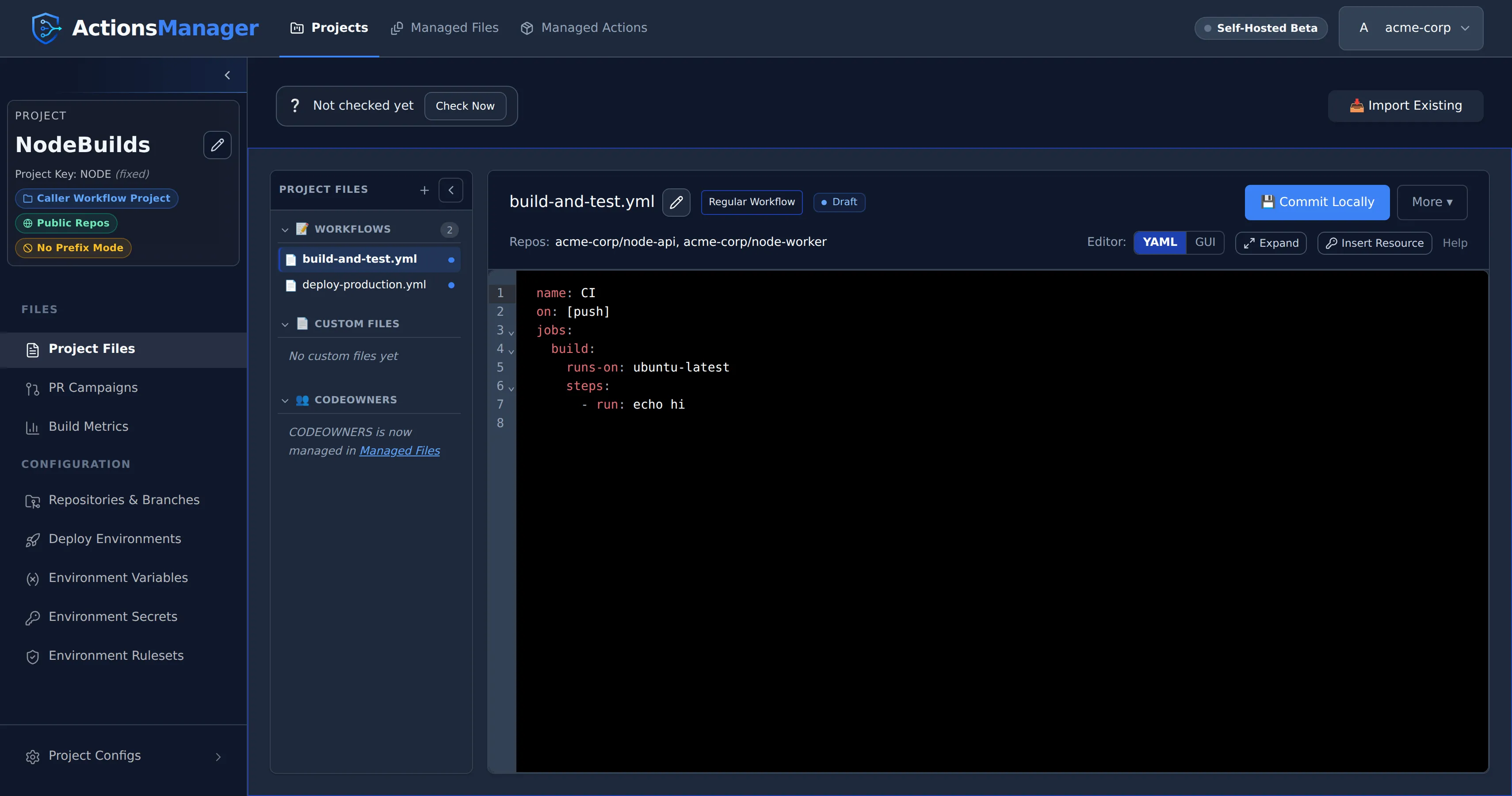
Use YAML or GUI in the editor toolbar to switch between the two views of the same workflow.
Expanding the editor
Section titled “Expanding the editor”Expand, next to the editor switch, opens the current workflow on a full-screen surface. It’s available in both YAML and GUI mode, so it stays in the same place whichever view you’re in — GUI mode gains the most, since the job list and step panel are no longer sharing an already-narrow pane.
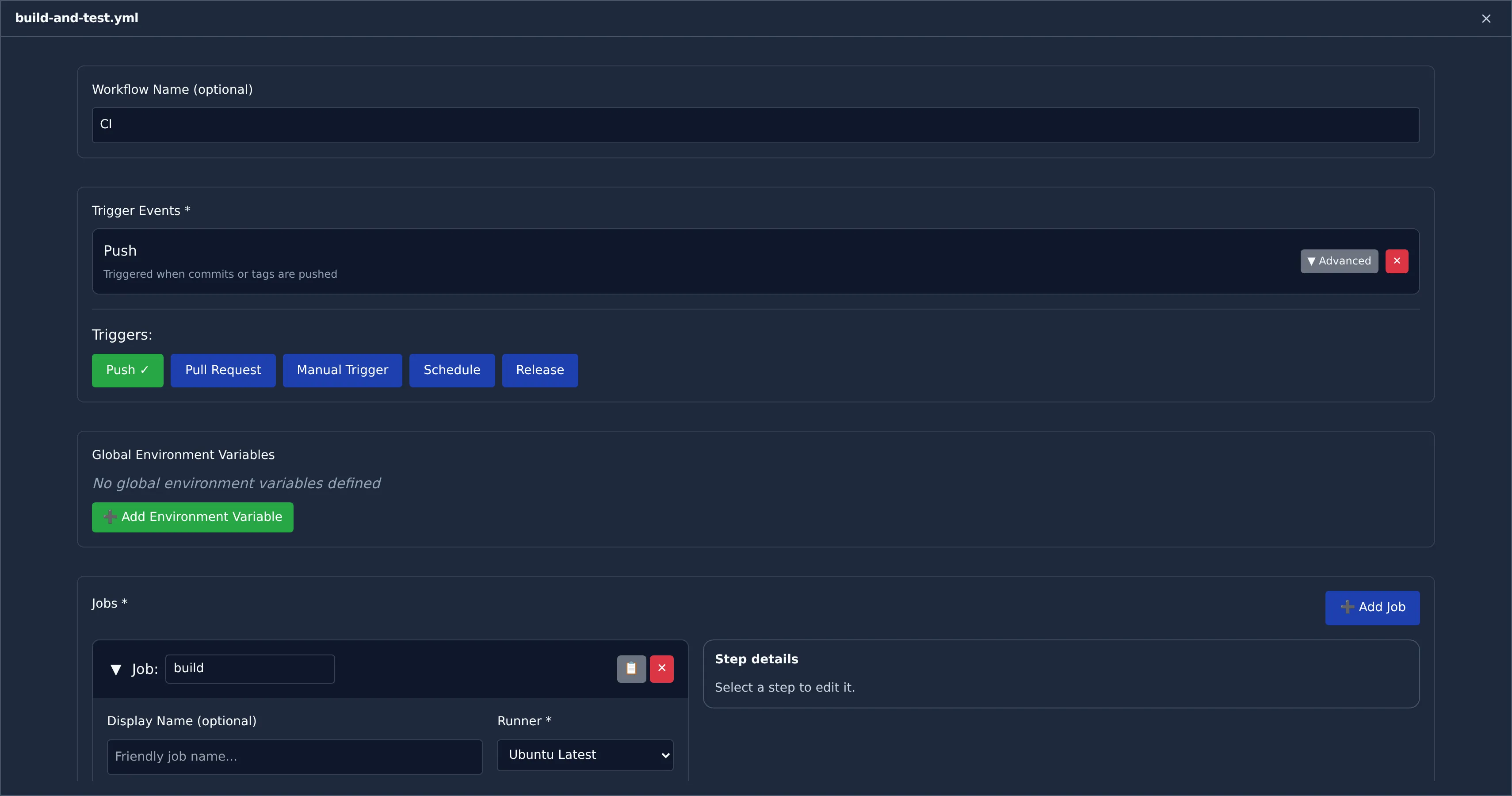
The expanded view will not close by accident. Clicking outside it does nothing, and there is no backdrop to dismiss — you leave it with the ✕ in its header, or by pressing Esc. If the workflow has unsaved changes you’re asked to confirm first, and confirming only collapses the view: your changes stay in the editor, still marked Unsaved, and nothing is committed or discarded.
Everything the toolbar offers for the current mode comes with you. In YAML mode that includes Insert Resource, so secrets, variables and deployment environments are still one click away.
GUI mode
Section titled “GUI mode”Switching the editor to GUI mode gives you a form-based view of the same workflow, kept in sync with the YAML as you edit.
If a workflow uses something GUI mode can’t edit without changing it, the editor stays in YAML and the message names the parts it can’t represent, so keep editing that workflow in YAML. Opening such a workflow while you’re already in GUI mode switches the editor back to YAML in the same way.
Triggers are toggle buttons. Clicking one adds that trigger with sensible defaults; clicking it again removes it, along with any branches, paths, sub-types or cron schedule you set on it. A trigger can only be added once — GitHub Actions keys on: by event name, so a second copy could never survive being written out.
A job that calls a reusable workflow shows which workflow it calls instead of a runner. Its runner, steps, timeout and environment variables can’t be set, because GitHub doesn’t allow them on such a job; edit its with: and secrets: in YAML.
A Schedule trigger with several cron lines keeps all of them. The cron field edits the first one; the others, and any timezone set on an entry, are written back unchanged. Earlier versions of the GUI wrote the cron list nested under a second schedule: key, which GitHub rejects; GUI mode won’t open a workflow saved that way, so fix it in YAML by moving the - cron: lines up to sit directly under on.schedule.
Steps are listed as compact rows. Click a row to open that step in the detail panel, which stays open while you move between steps — it sits to the right of the job list, or below it on narrower screens, where selecting a step scrolls it into view. The panel is the only place a step is edited, so there’s never a question of where to make a change. Renaming a step updates its row title immediately.
Adding or duplicating a step opens it in the panel straight away, ready to edit. A duplicated step doesn’t copy the original’s id:, because step ids must be unique within a job and any steps.<id> expression should keep pointing at the original.
Inserting secrets and variables
Section titled “Inserting secrets and variables”The secrets, variables and deployment environments you create under Repository Configs can be referenced from the editor without typing their names by hand.
In YAML mode, Insert Resource in the editor toolbar opens a searchable list grouped by type, with the repository each entry belongs to shown beside it. Choosing one writes the reference at the cursor:
| Resource | Inserted |
|---|---|
| Secret | ${{ secrets.NAME }} |
| Variable | ${{ vars.NAME }} |
| Deployment environment | environment: NAME |
Typing ${{ in the editor offers the same secrets and variables as inline suggestions.
In GUI mode the same picker sits beside the free-text fields — a step’s Script, its environment variable values, and action parameter values — and inserts at the cursor in that field. Deployment environments are not offered there: environment: is a job-level key, so it only makes sense in the YAML document.
This matters most in Prefix Mode, where the name stored in GitHub carries the project prefix. A secret you created as DOCKER_PASSWORD in project REG1 is stored as AM_REG1_DOCKER_PASSWORD, and that full name is what a workflow has to reference. The picker inserts exactly the name GitHub holds, so the prefix is never something you have to remember or get right by hand.
Two things worth knowing:
- Secret values are never shown. GitHub does not return stored secret values, and ActionsManager only ever displays and inserts names. The same applies to variables — the picker lists names only.
- Inserting does not save. The workflow is marked Unsaved and nothing is written until you commit it, so an insertion can always be undone or edited first.
The picker is not offered when you have read-only access to the project, or while a workflow is locked for review.
Related Topics
Section titled “Related Topics”- Projects — organize repositories for workflow management
- PR Campaigns — deliver changes through reviewable pull requests
- Drift Detection — monitor workflow consistency
- Reusable Workflows — manage reusable workflow producers
© 2026 ActionsManager. All rights reserved.